General
In addition to existing external backup solutions, Print&Share CQ offers the ability to back up its own settings and configuration and restore them.
We always recommend not relying on just a single backup method.
Backups can be created manually or performed automatically at regular intervals via a backup task.
Configuration
Navigate to Print&Share CQ > Manage > Maintenance > Backups.
There you have the possibilities to configure:
- Configure automatic backup tasks
- Restore an automatic backup
- Create a manual backup
- Import a manual backup
Configure automatic backup tasks
On the Backups page click the [Edit] button in the section Automatic backup task.

There you can Enable automatic backups and specify the frequency, day of week (start), hour (start), maximum number of backups to keep and the location to store the backups.
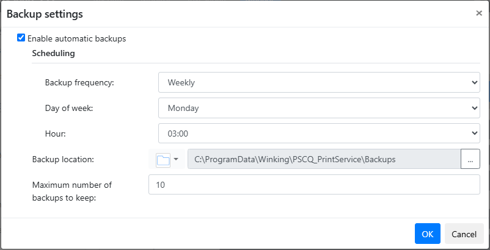
Click [OK] to confirm the settings.
Restore an automatic backup
On the Backups page click the [Restore backup] button.
In the popup select the backup you which to restore.
Create a manual backup
On the Backups page click the [Create manual backup] button.
In the dialog check all data you which to backup.
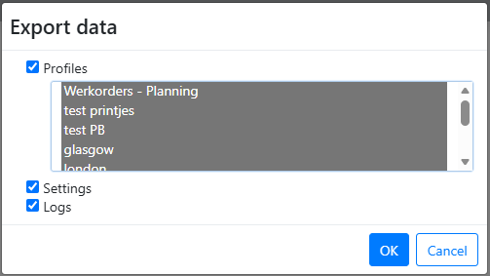
Click [OK] to start the manual backup.
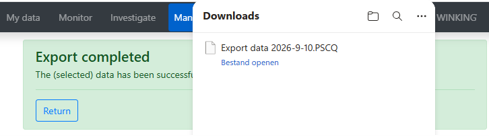
This may take a few minutes, and the service might be temporarily unresponsive during that time.
The file download will start automatically in the web browser.
Import a manual backup
On the Backups page click the [Import manual backup] button.
Select the manual backup file earlier created.